Crew Internet Login Help for SIGMA Vessels and Sites
Remote staff and crew internet login on SIGMA vessels and remote sites runs through an onboard portal, using the vouchers your captain or site manager provides. This page explains how to connect, what to do if the login page doesn’t open, and who to contact for help.
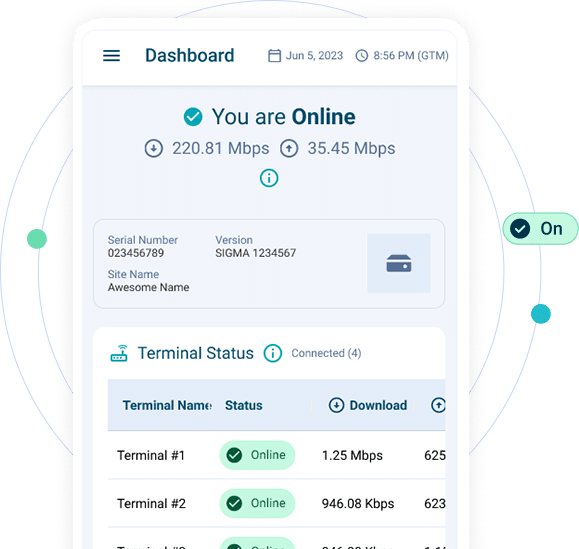
How to Log In to SIGMA Staff and Crew Internet
Before accessing Remote Staff and Crew Internet, connect your device to the local SIGMA Wi-Fi network and open the Crew Experience portal. Users can either log in with credentials provided by their site administrator or create their own account and wait for approval.
Getting Started
- Connect to the local SIGMA Wi-Fi network.
- Log in using your email and password, or create an account if self-registration is enabled.
- Once logged in, you can:
- Activate a free data plan (if available)
- Redeem a voucher
- Purchase a data plan
- Connect to the internet
- Track your data usage
New User?
If self-registration is enabled, create an account and submit your request. Your site administrator or manager must approve your account before you can access Crew Internet.

Crew WiFi Login Page Not Loading?
If the login page does not appear automatically:
- Ensure you are connected to the local SIGMA Wi-Fi network.
- Close any captive portal window that automatically opens.
- Open a web browser, refresh the page and try again.
- For Android and iOS devices, manually opening the SIGMA portal URL is required.

For Captains and Site Managers
SIGMA provides managers with tools to control user access, distribute internet services, and monitor connectivity across the site.
| User Management | Voucher Management | Monitoring & Reporting |
|---|---|---|
Managers can:
|
Managers can:
|
Managers can view:
|
Need Additional Help?
Managers can access user guides, tutorials, and support resources directly within the SIGMA portal under the Tutorials and Support sections.


The SIGMA Crew Experience portal is only accessible when connected to your vessel, rig, camp, site, or facility’s SIGMA network. If you’re not connected to the local SIGMA Wi-Fi network, the login page will not load.
To disconnect from the internet:
- Go to the Home page.
- Click Disconnect from Internet.
To sign out of the portal completely:
- Select your profile menu.
- Click Log Out.
Crew Internet vouchers are provided by your site manager, vessel captain, administrator, or designated site representative. Managers can create and distribute vouchers directly from the SIGMA management portal.
After logging in:
- Select Redeem Voucher
- Enter the voucher code provided to you
- Confirm redemption
- The associated data or voice plan will appear in your account and be available for use.
After activating or redeeming a plan:
- Navigate to the Home page.
- Select your active plan.
- Click Connect Network if required.
- Click Connect to start your internet session.
Your registration request has been submitted but has not yet been approved by a site manager or administrator. Please wait for approval or contact your site representative. After one week, unapproved requests expire and a new request must be submitted.
Accounts are automatically locked after three unsuccessful login attempts. Contact your site manager or administrator, who can reset your password through the SIGMA management portal.
If you are unable to connect, cannot access the portal, have issues redeeming vouchers, or experience account problems:
- Contact your vessel captain, site manager, camp administrator, or local IT representative first.
- If additional assistance is required, site managers can contact Speedcast Support directly through the Support section of the SIGMA portal, where support contact details, service desk information, and support resources are available.
The SIGMA Crew Experience portal is only accessible when connected to your vessel, rig, camp, site, or facility’s SIGMA network. If you’re not connected to the local SIGMA Wi-Fi network, the login page will not load.
To disconnect from the internet:
- Go to the Home page.
- Click Disconnect from Internet.
To sign out of the portal completely:
- Select your profile menu.
- Click Log Out.
Crew Internet vouchers are provided by your site manager, vessel captain, administrator, or designated site representative. Managers can create and distribute vouchers directly from the SIGMA management portal.
After logging in:
- Select Redeem Voucher
- Enter the voucher code provided to you
- Confirm redemption
- The associated data or voice plan will appear in your account and be available for use.
After activating or redeeming a plan:
- Navigate to the Home page.
- Select your active plan.
- Click Connect Network if required.
- Click Connect to start your internet session.
Your registration request has been submitted but has not yet been approved by a site manager or administrator. Please wait for approval or contact your site representative. After one week, unapproved requests expire and a new request must be submitted.
Accounts are automatically locked after three unsuccessful login attempts. Contact your site manager or administrator, who can reset your password through the SIGMA management portal.
If you are unable to connect, cannot access the portal, have issues redeeming vouchers, or experience account problems:
- Contact your vessel captain, site manager, camp administrator, or local IT representative first.
- If additional assistance is required, site managers can contact Speedcast Support directly through the Support section of the SIGMA portal, where support contact details, service desk information, and support resources are available.
All →
Why can't I open the Crew Internet login page from home?
The SIGMA Crew Experience portal is only accessible when connected to your vessel, rig, camp, site, or facility’s SIGMA network. If you’re not connected to the local SIGMA Wi-Fi network, the login page will not load.
How do I log out of Crew Internet?
To disconnect from the internet:
- Go to the Home page.
- Click Disconnect from Internet.
To sign out of the portal completely:
- Select your profile menu.
- Click Log Out.
Where do I get a Crew Internet voucher?
Crew Internet vouchers are provided by your site manager, vessel captain, administrator, or designated site representative. Managers can create and distribute vouchers directly from the SIGMA management portal.
How do I redeem a voucher?
After logging in:
- Select Redeem Voucher
- Enter the voucher code provided to you
- Confirm redemption
- The associated data or voice plan will appear in your account and be available for use.
How do I connect to the internet?
After activating or redeeming a plan:
- Navigate to the Home page.
- Select your active plan.
- Click Connect Network if required.
- Click Connect to start your internet session.
My account says "Pending". What does that mean?
Your registration request has been submitted but has not yet been approved by a site manager or administrator. Please wait for approval or contact your site representative. After one week, unapproved requests expire and a new request must be submitted.
My account is locked. What should I do?
Accounts are automatically locked after three unsuccessful login attempts. Contact your site manager or administrator, who can reset your password through the SIGMA management portal.
Who do I contact if Crew Internet isn't working?
If you are unable to connect, cannot access the portal, have issues redeeming vouchers, or experience account problems:
- Contact your vessel captain, site manager, camp administrator, or local IT representative first.
- If additional assistance is required, site managers can contact Speedcast Support directly through the Support section of the SIGMA portal, where support contact details, service desk information, and support resources are available.
Log in & Log out →
Why can't I open the Crew Internet login page from home?
The SIGMA Crew Experience portal is only accessible when connected to your vessel, rig, camp, site, or facility’s SIGMA network. If you’re not connected to the local SIGMA Wi-Fi network, the login page will not load.
How do I log out of Crew Internet?
To disconnect from the internet:
- Go to the Home page.
- Click Disconnect from Internet.
To sign out of the portal completely:
- Select your profile menu.
- Click Log Out.
Internet Voucher →
Where do I get a Crew Internet voucher?
Crew Internet vouchers are provided by your site manager, vessel captain, administrator, or designated site representative. Managers can create and distribute vouchers directly from the SIGMA management portal.
How do I redeem a voucher?
After logging in:
- Select Redeem Voucher
- Enter the voucher code provided to you
- Confirm redemption
- The associated data or voice plan will appear in your account and be available for use.
Connect to the Internet →
How do I connect to the internet?
After activating or redeeming a plan:
- Navigate to the Home page.
- Select your active plan.
- Click Connect Network if required.
- Click Connect to start your internet session.
Account Management →
My account says "Pending". What does that mean?
Your registration request has been submitted but has not yet been approved by a site manager or administrator. Please wait for approval or contact your site representative. After one week, unapproved requests expire and a new request must be submitted.
My account is locked. What should I do?
Accounts are automatically locked after three unsuccessful login attempts. Contact your site manager or administrator, who can reset your password through the SIGMA management portal.
Get Support →
Who do I contact if Crew Internet isn't working?
If you are unable to connect, cannot access the portal, have issues redeeming vouchers, or experience account problems:
- Contact your vessel captain, site manager, camp administrator, or local IT representative first.
- If additional assistance is required, site managers can contact Speedcast Support directly through the Support section of the SIGMA portal, where support contact details, service desk information, and support resources are available.
Related Products

Staff & Crew Experience
Transform staff and crew experience with optimized networks, simplified administration, and customizable services.

Voice
Scalable voice solutions and comprehensive support for reliable communication in challenging remote environments.
Voice
Out of Band Management
Uninterrupted remote access, swift issue resolution, maximize network performance.
Out of Band Management